Hardy Barth cPH2
Prerequisites
Make sure the following conditions are met before starting the setup:
- The Hardy Barth cPH2 is installed and connected to the local network.
- You have access to the FLOEM portal (CLEMAP account with administrator rights).
- Your device (PC or tablet) is on the same network as the charging station.
Setup
1. Determine the IP address of the charging station
Scan the local network to find the IP address of the Hardy Barth cPH2. Suitable tools include:
- Advanced IP Scanner (Windows)
- Fing (smartphone app, iOS/Android)
- The DHCP client list in your router
The charging station typically appears in the device list under the manufacturer name Hardy Barth or the hostname cph2-XXXXXX. Note down the displayed IP address (e.g. 192.168.1.45).
2. Log in to the FLOEM portal
Open the FLOEM portal in your browser and log in with your administrator credentials. Navigate to Settings → Charging Stations (or "EVSE Management").
3. Add a new charging station
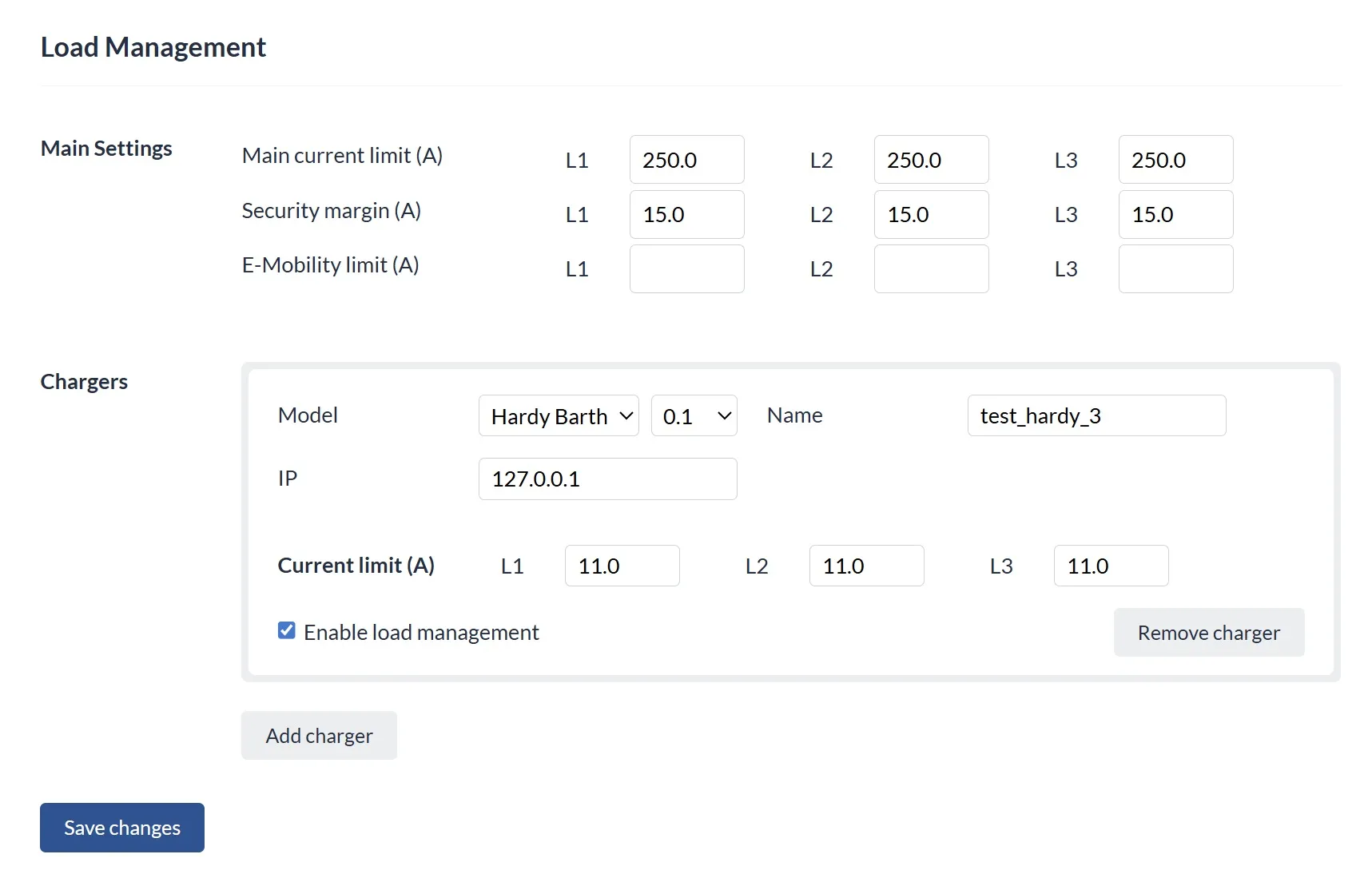
Click Add Device (or "+"). In the device type dropdown menu, select Hardy Barth CPH2 from the list.
4. Enter the IP address and save
Enter the IP address identified in step 1 into the IP Address field. Confirm the entry and save the configuration.
5. Verify the connection
After saving, the charging station should appear as online in the FLOEM portal. The status indicator will switch from "Not connected" to "Ready" or "Connected". This may take a few seconds.
The Hardy Barth cPH2 is now integrated into FLOEM and is available for load management and charging control.