Keba P40
For the P40, the settings must be made in the corresponding app and not in the browser.
The app can also be used for the P30.
Android: Google Play Store – KEBA eMobility App
iOS: App Store – KEBA eMobility App
Setting up the KEBA KeContact P40 for CLEMAP
This guide describes how to configure the network connection, enable Modbus TCP and add the charging station to Floem.
1 Requirements
The following information and equipment are required:
- KEBA eMobility App
- Bluetooth enabled on the mobile device
- Charging station PIN
- Installer PWD
- Access to the LAN or Wi-Fi credentials
- Charging station switched on
The PIN and Installer PWD can be found on the sticker on the back of the supplied quick-start guide.
2 Connecting via Bluetooth
- Install the KEBA eMobility App on the mobile device.
- Enable Bluetooth on the mobile device.
- Make sure that the charging station is switched on.
- Remain within 10 metres of the charging station.
- Open the KEBA eMobility App.
- Select the charging station. If it is not displayed, add it using the + button.
- Enter the charging station PIN.
- Select the Installer role and enter the corresponding Installer PWD.
The Bluetooth connection to the charging station is now established.
3 Configuring LAN or Wi-Fi
- Establish a Bluetooth connection to the charging station in the KEBA eMobility App.
- Open Network Connection or the Network Configuration Wizard.
- Select the required connection:
- For LAN, make sure that the network cable is connected correctly.
- For Wi-Fi, select the required network and enter the Wi-Fi password.
- Save the settings and wait until the charging station connects to the network.
- Check the IP address assigned to the charging station in the device information.
Use the IP address of the connection that is actually being used:
- Network cable: LAN IP Address
- Wi-Fi connection: WLAN IP Address
Make a note of this IP address. It will be required when adding the charging station to Floem.
Important: Do not continue with the Modbus configuration until the charging station can be reliably reached via LAN or Wi-Fi.
4 Enabling Modbus TCP
- Open the charging station in the KEBA eMobility App and go to Settings.
- Select Show advanced settings at the bottom of the screen.
- Open Modbus.
- Switch on Enable. The switch must be displayed in green.
- Check the following values:Keep the default values unless different values have been specified for the installation.
- Port: 502
- Unit ID: 255
- Scroll down to Failsafe Timeout.
- Set Failsafe Timeout to 300 seconds.
- Select Save in the upper-right corner.
Important: The Failsafe Timeout must be set to 300 seconds and saved.
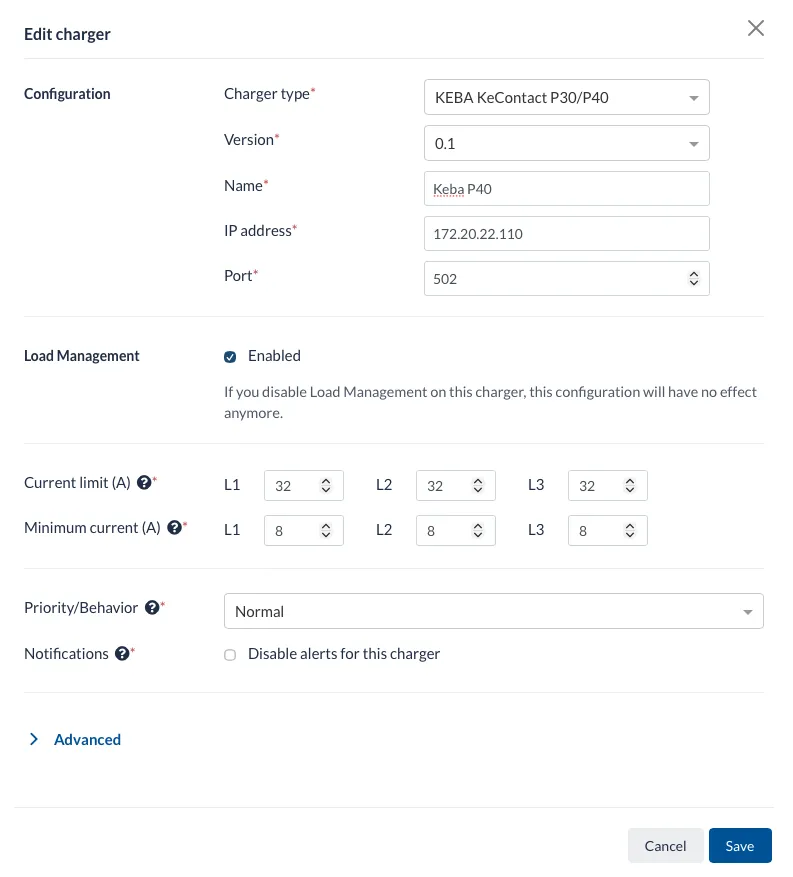
5 Adding the charging station to Floem
- Open the required installation in Floem.
- Add a new charging station.
- Enter the following settings: