NexBlue Edge Max and Delta Max
- Connect the NexBlue Edge Max charging station to your LAN using an Ethernet cable.
- Then connect the power cable to switch on the charging station.
- Download the NB Partner mobile app to your smartphone and enable Bluetooth.
- Hold your smartphone close to the charging station's connector and follow the instructions in the app to:
- create a user account,
- create a location,
- create a circuit,
- integrate the charging station.
When creating the circuit, make sure to set the correct maximum charging current.
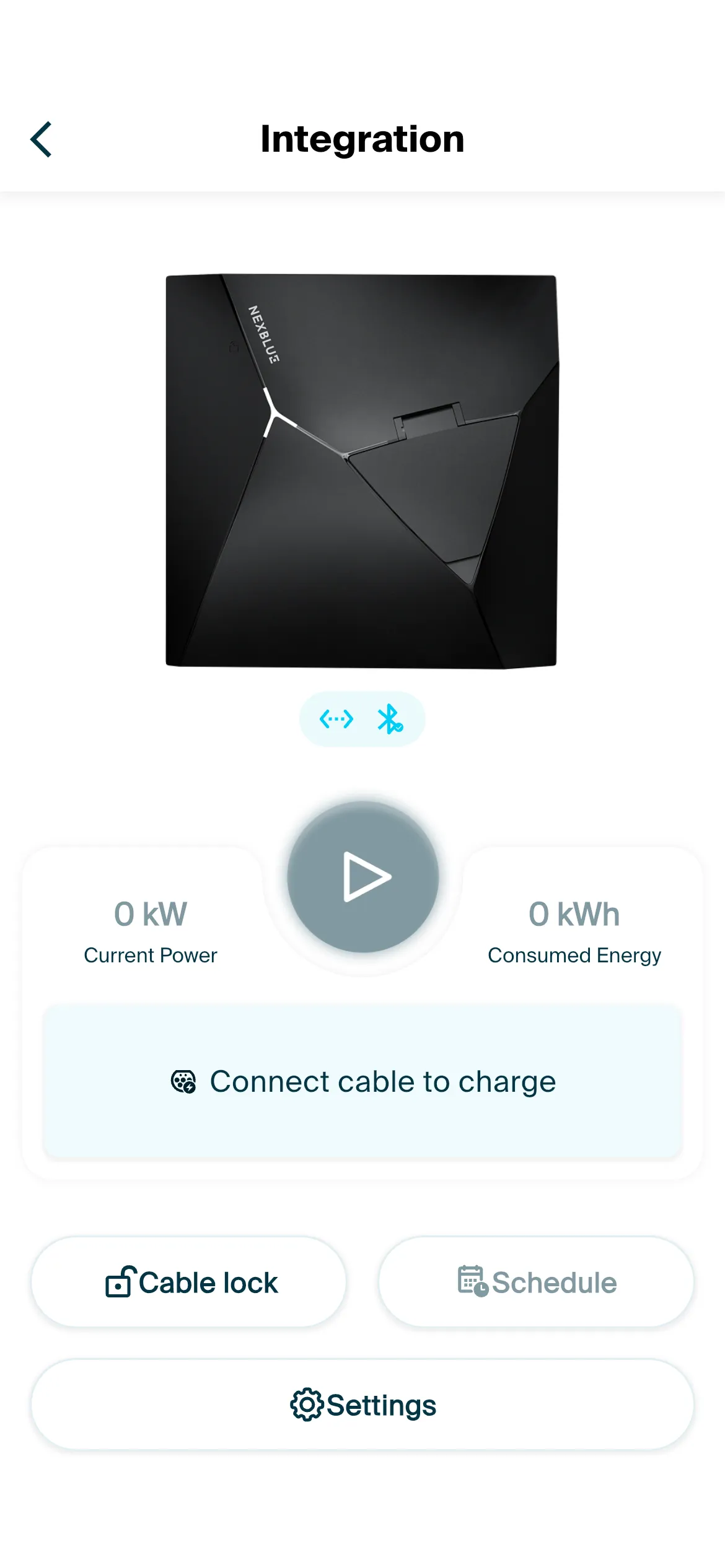
- In the app, go to Settings and update the firmware.
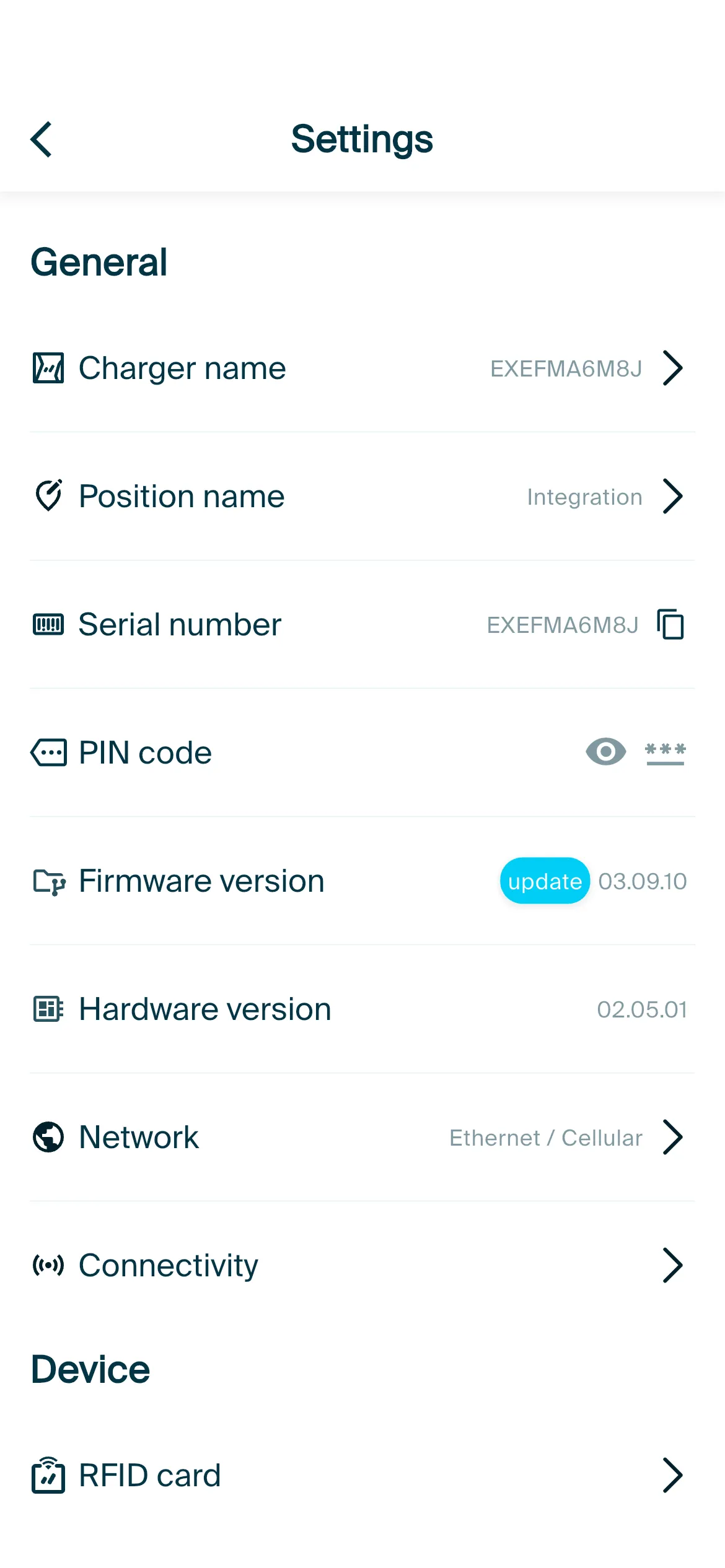
- Under Network, select Ethernet as the network connection.
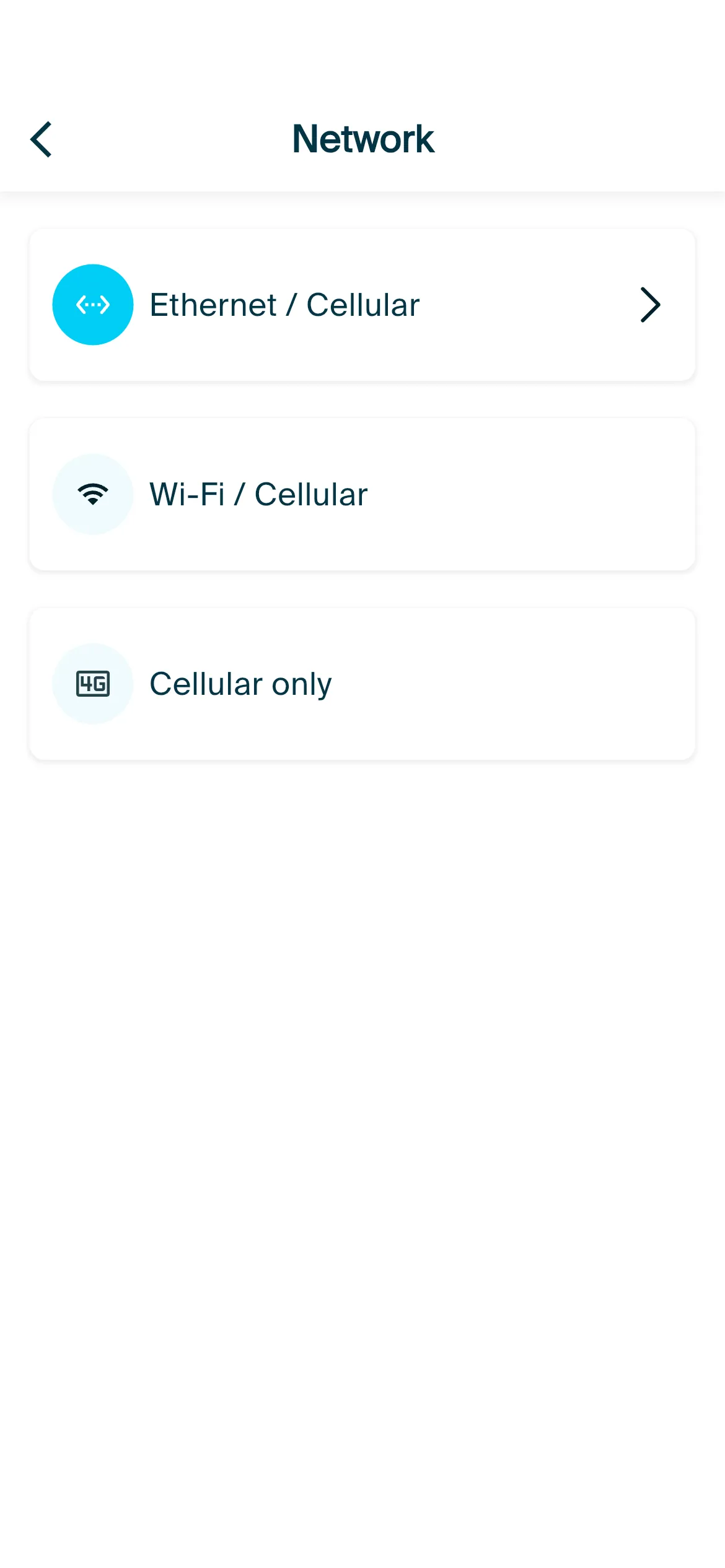
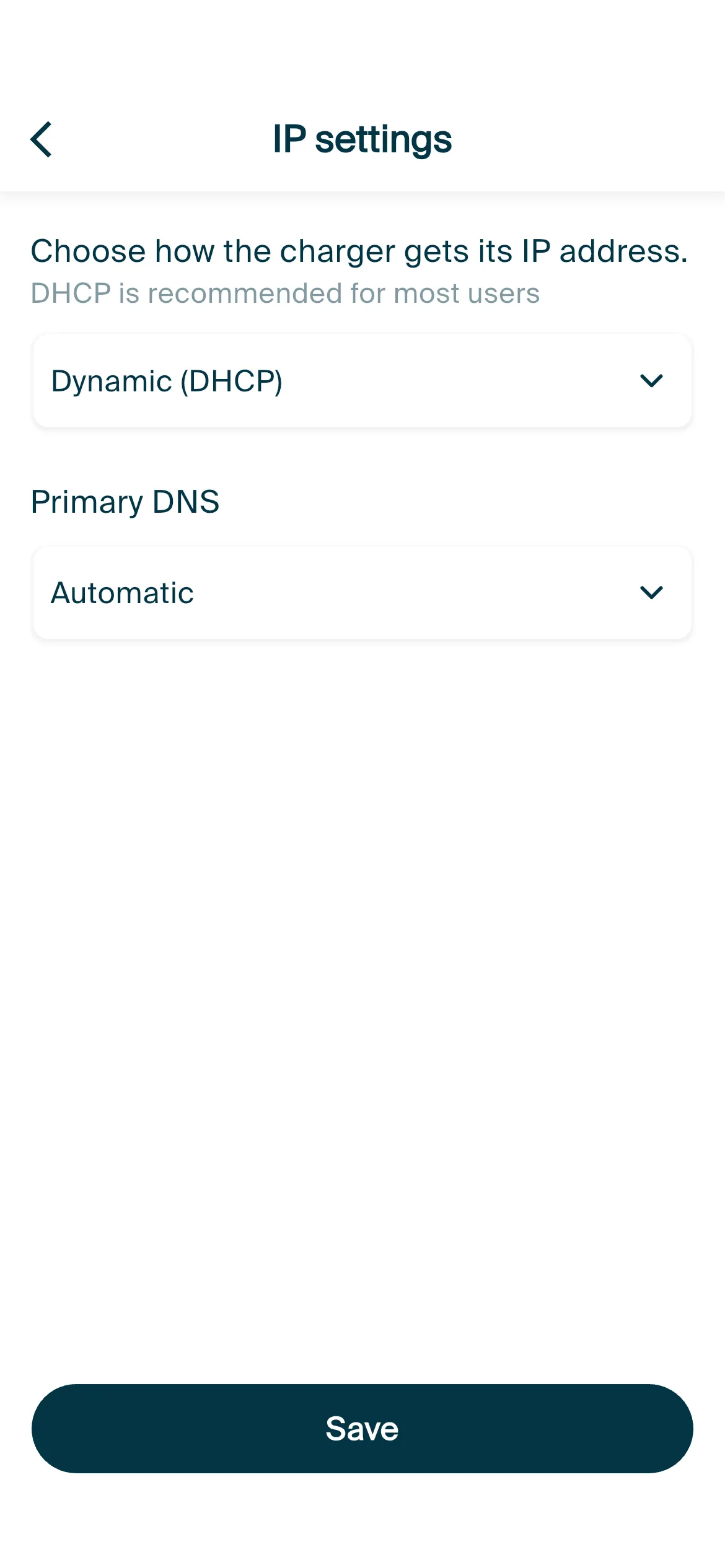
- Enable DHCP if the IP address should be obtained automatically. Alternatively, you can configure a static IP address.
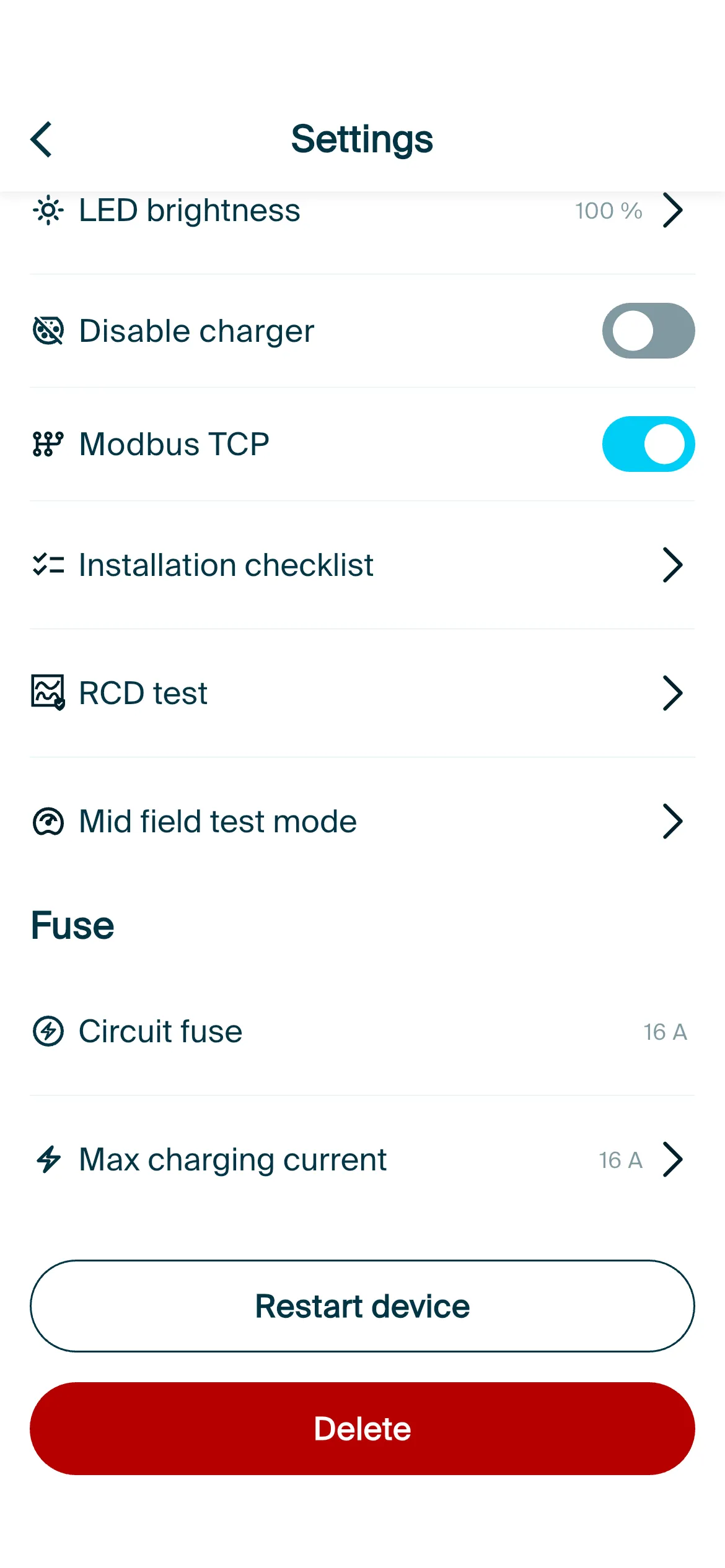
- Under Settings, enable the Modbus TCP function.
- For initial functional tests, the Access Level can be set to No Restrictions.
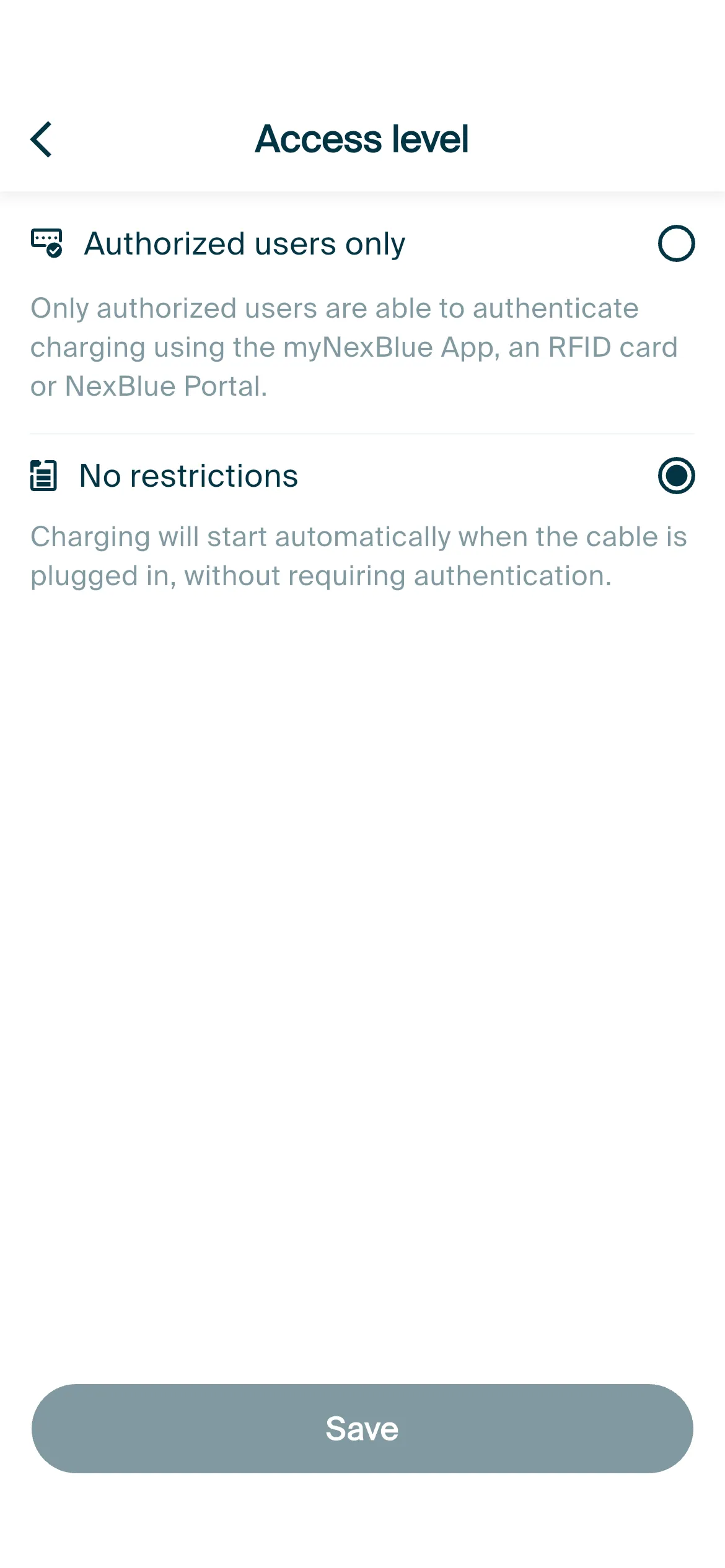
- After testing, set the Access Level back to Authorized Users Only. In this mode, access is only possible via the myNexBlue app or an authorized RFID card.
- Connect a laptop to the same LAN as the charging station.
- Determine the charging station's IP address using an IP scanner tool. Note: no web interface is available at this IP address.
- The IP address and Modbus TCP port 502 serve as the access credentials for Modbus communication.
- Enter the IP address and port 502 in the FLOEM portal to connect the charging station.