How do I create a support ticket in the CLEMAP Support Portal?
If you need technical assistance or want to report an issue, simply submit a ticket through our support portal.
1. Open the support portal
Open the following website in your browser: https://clemap-support.zammad.com
2. One-time registration (first visit only)
With an account you can manage your tickets and view replies directly in the portal:
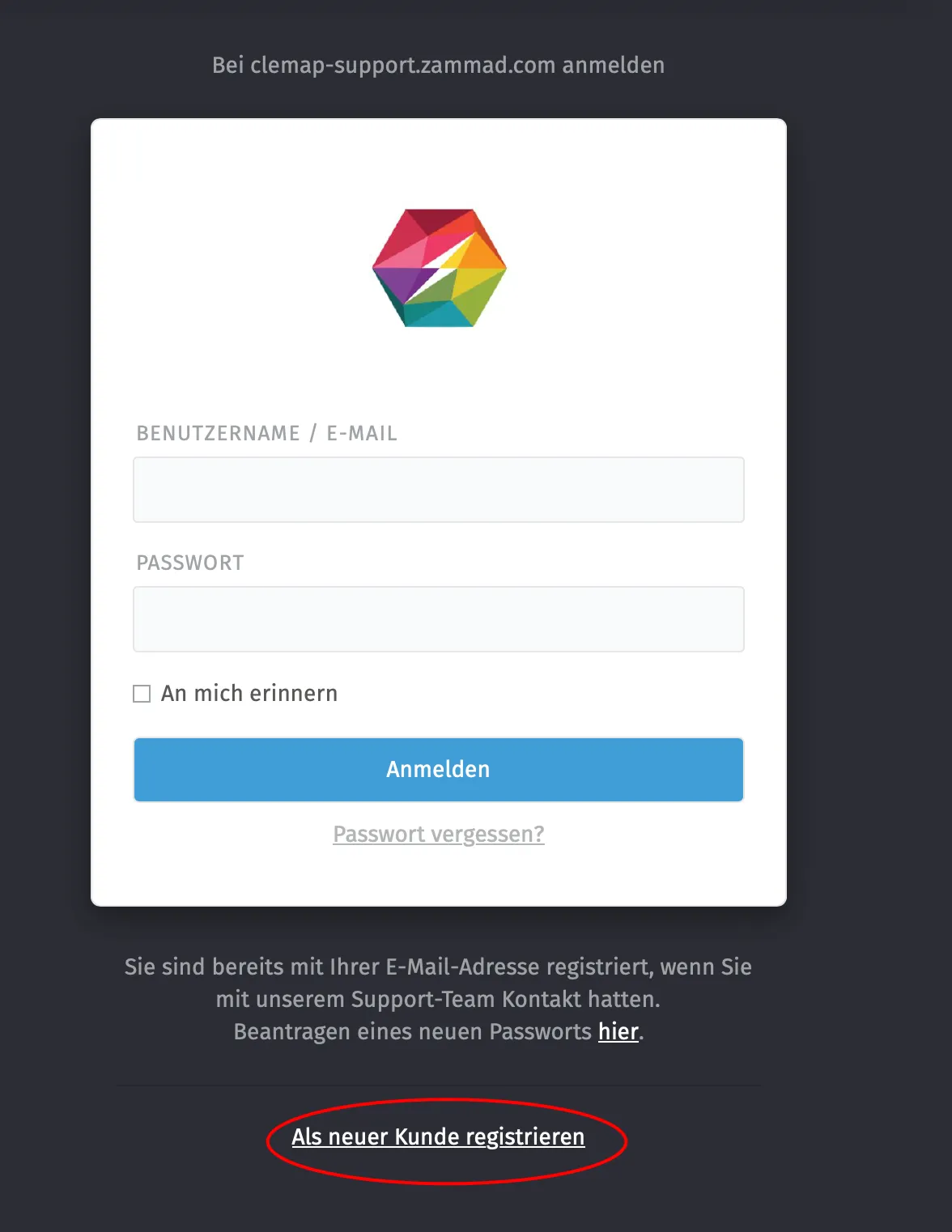
- Click "Sign in" in the top right corner.
- Select "Register as a new customer" or "Sign up".
- Enter your name and email address.
- You will receive a confirmation email – click the link it contains.
After that, you can sign in at any time with your email address.
3. Create a new ticket
After signing in, click "Create new ticket" on the start page and fill in the form completely:
- Name: first and last name
- Email address: filled in automatically when you are signed in
- Subject: short summary of your request (e.g. "No connection to the charging station")
- Message: detailed description of the issue. If available, please also include:
- Serial number (SExxxxxxxx)
- Installation site
- Attachments (optional): documents or screenshots
Tip: The more precise your description, the faster we can help you.
4. Submit the ticket
Click "Submit". You will immediately receive an automatic confirmation email with your ticket number.
5. Tracking and replies
The CLEMAP support team will get back to you promptly. In the support portal you can at any time:
- check the status of your ticket
- reply to follow-up questions
- add further information or attachments
CLEMAP Support Portal: https://clemap-support.zammad.com Support hours: Monday to Friday, 08:00–12:00 and 13:30–17:00 (CET/CEST)