Elecq OCPP Home
This guide walks you through connecting an Elecq charging station to a CLEMAP device via OCPP, step by step — for both a standard connection and a proxy connection.
Step 1: Configuration in the Elecq Partner App
1.1 Open the Elecq Partner App on your phone.
1.2 Scan the device's QR code, or enter the serial number and matching password manually.

1.3 In the app, open the "Config Tools" section.

1.4 Connect to the charging station and open the OCPP settings.

1.5 Under OCPP Server, add a custom server.

1.6 In the Server field, enter the OCPP URL of the CLEMAP device.
To find the clemap_lm_edge_device_ip_address, scan the local network and look for the sensor's IP address.
For a standard connection, enter the following URL:
ws://[clemap_lm_edge_device_ip_address]:7050/For a proxy connection, use this instead:
ws://[clemap_lm_edge_device_ip_address]:8050/
Step 2: Configuration in FLOEM
2.1 For a proxy connection, add the Identifier and the additional backend URL in the charging station configuration in FLOEM.
Proxy connection with Sintio
- First establish a direct connection to the Sintio backend and restart the charging station.
- Once the charging station appears in the eCarUp backend, change the station's ocpp_url to ws://[clemap_lm_edge_device_ip_address]:8050/ and restart the charging station again.
- Otherwise, the charging station may not appear in the eCarUp backend.
Note: There is currently an issue with the BootNotification that we are working to resolve. Thank you for your understanding.
2.2 For a standard connection, you only need to add the Identifier.
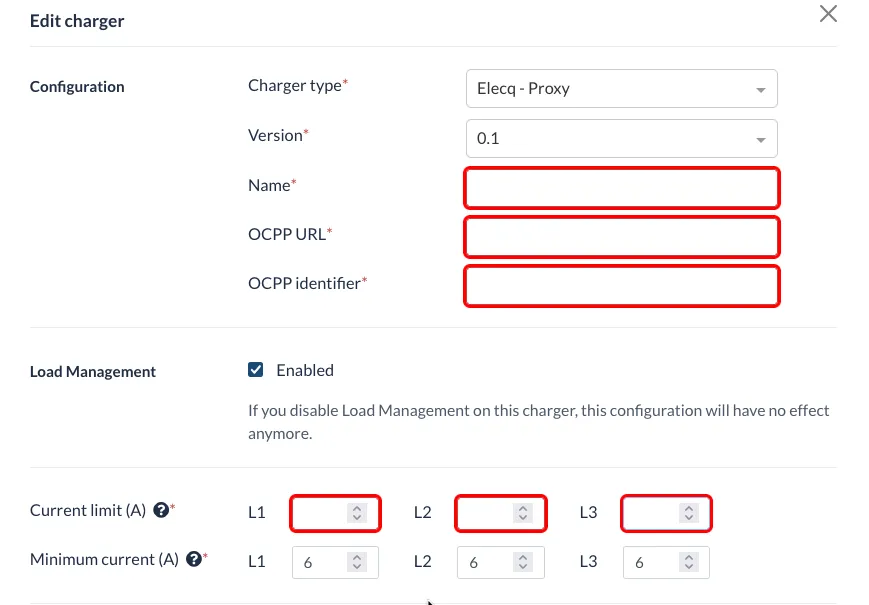
The Identifier is critical. If it does not match the Identifier stored in the charging configuration, the connection will be rejected.
Example
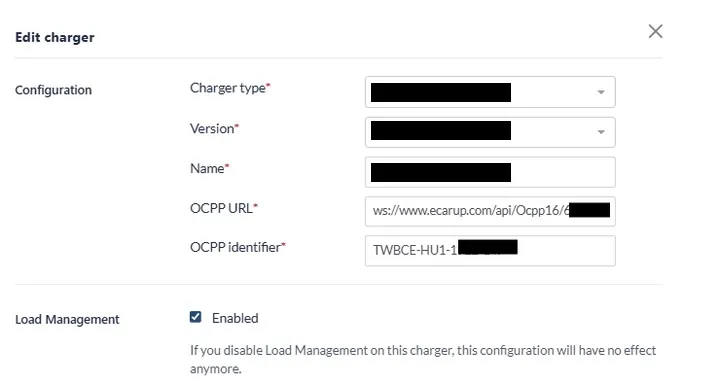
Here is an example from one of our customers using a proxy connection with eCarUp:
Happy Charging!