OCPP Connection of a Charging Station with CLEMAP
1. Access to the Charging Station
To connect the charging station to CLEMAP, you need access to its settings.
- Some charging stations have their own web interface, which you can access in your browser via the station’s IP address.
- If this is not possible, contact the manufacturer’s support team. They can help you with the configuration.
2. Enter the CLEMAP Address
TLS connection (wss://) will be available with firmware version 5.0.7 — via port 7051 locally and port 8051 via proxy. Currently, OCPP runs unencrypted via ws:// on ports 7050 and 8050.
In the charging station settings, there is a field for the server address, also called the OCPP URL. Depending on the use case, there are two connection types:
- Proxy connection: Recommended if an external billing backend such as eCarUp is used
- Direct connection: CLEMAP ↔ charging station, without an external backend
You can find the IP address of the CLEMAP device in the local network, for example using a network scanner or by asking your IT team.
3. Difference: Direct Connection vs. Proxy Connection
- Direct connection: The charging station communicates directly with CLEMAP. No external backend is involved.
- Proxy connection: CLEMAP acts as an intermediary between the charging station and a billing system, such as eCarUp. The messages from the charging station pass through CLEMAP and are forwarded to the backend.
Think of the proxy like a mail carrier:
- Without a proxy: the charging station writes directly to CLEMAP.
- With a proxy: CLEMAP receives the message and forwards it to the billing system.
4. Additional Steps Depending on the Connection Type
a) Direct Connection
- Enter the identifier, also called the Charge Point ID.
- This identifier must exactly match the configuration in CLEMAP. Otherwise, the connection will be rejected.
b) Proxy Connection
In addition to the CLEMAP proxy URL, enter the identifier and the backend URL of the billing system.
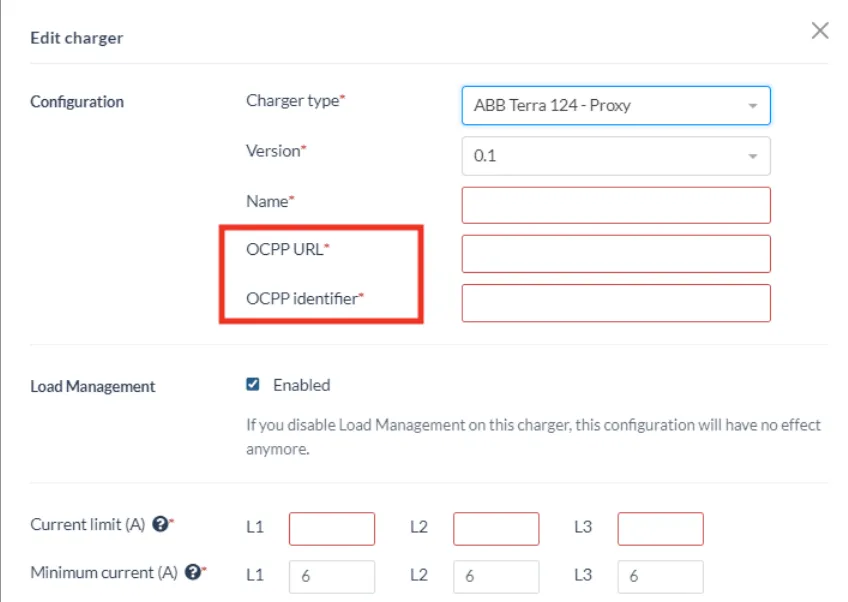
c) Proxy Connection with eCarUp
- First connect the charging device directly to eCarUp and restart it.
- Once the device is visible in the eCarUp system, change the OCPP URL to the CLEMAP proxy address:
- Restart the charging device again.
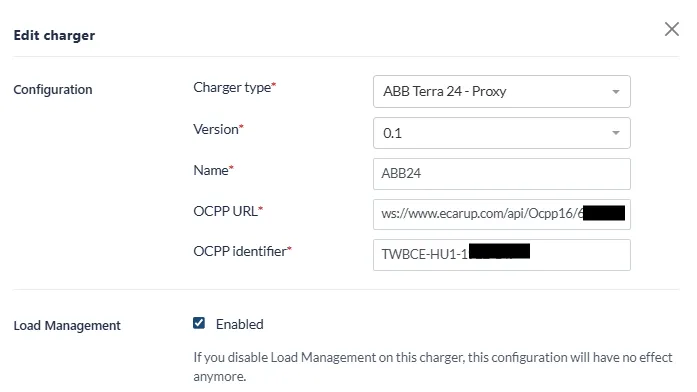
5. Check the Connection
After configuring and restarting the charging station, you can check the connection in FLOEM:
- The charging station should appear as “Online”.
- The active OCPP connection type, either direct or proxy, is visible in the device status.